![pdfforge_fav-2.png]](https://support.pdfforge.org/hs-fs/hubfs/pdfforge_fav-2.png?height=40&name=pdfforge_fav-2.png)
Setting Up an Attachement
- Open PDFCreator and go to Profiles.
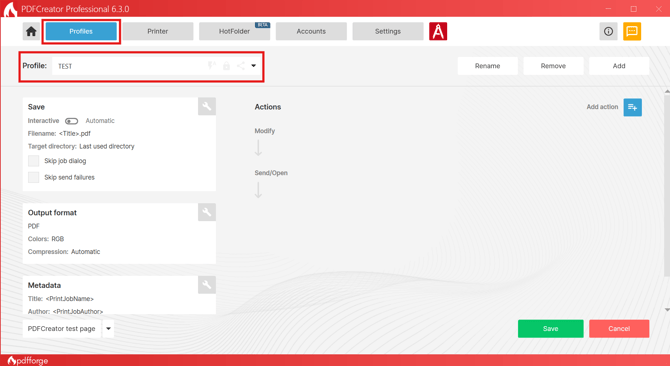
- Select the profile you want to edit from the list on the left (or create a new one).
- Open the Actions section for that profile.
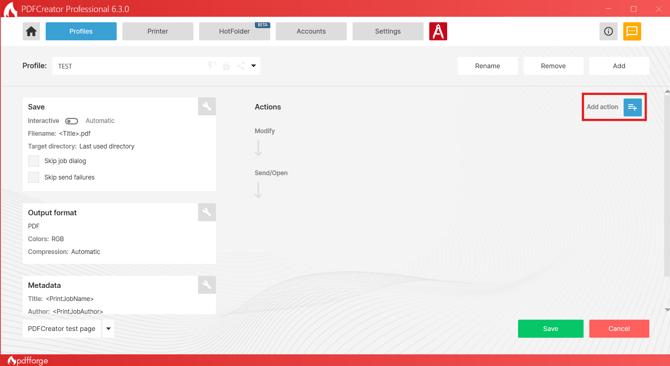
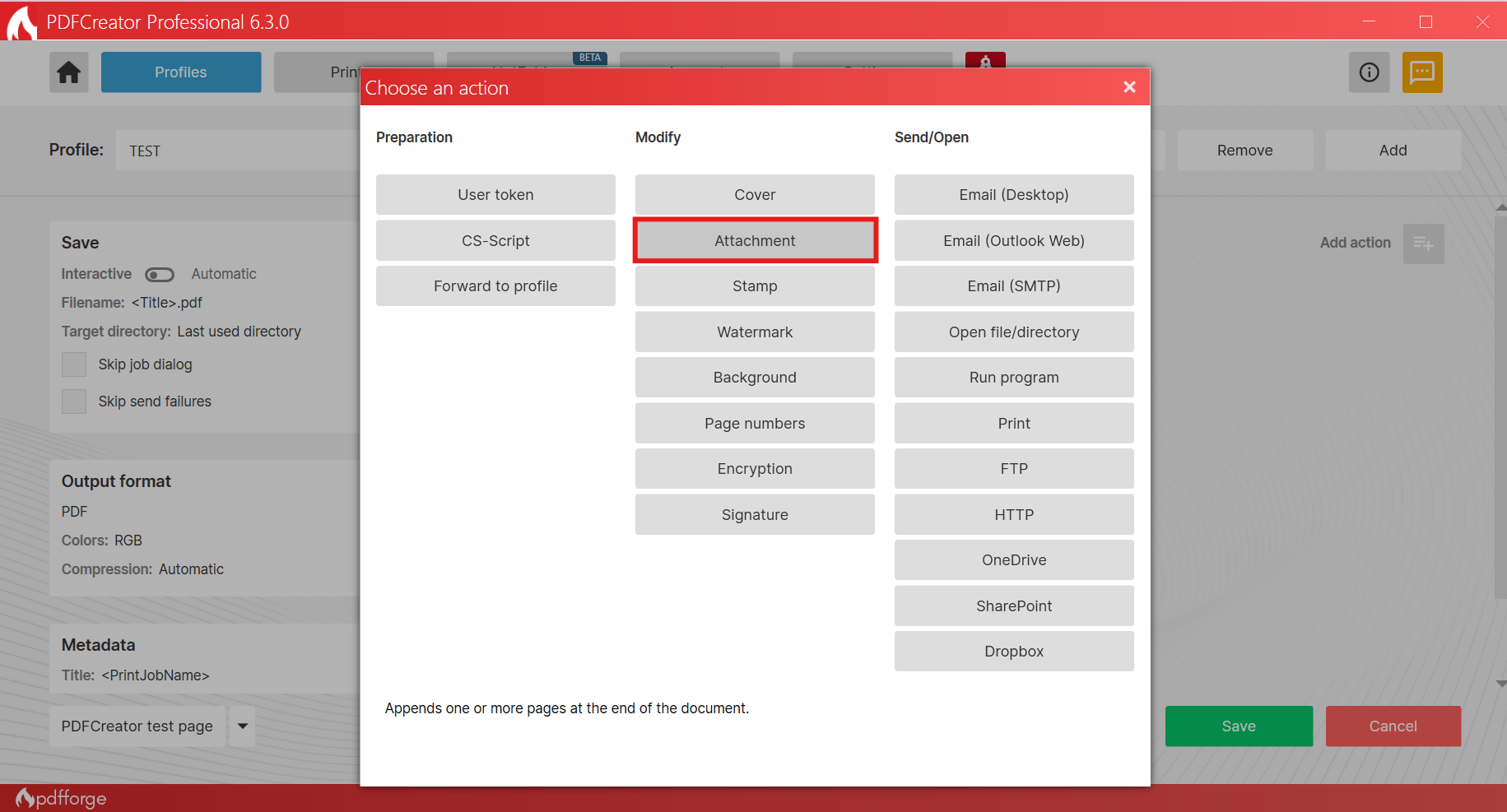
- Under the Modify stage, find Attachement and add it to the workflow.
- Click Add File. An overlay window will open.
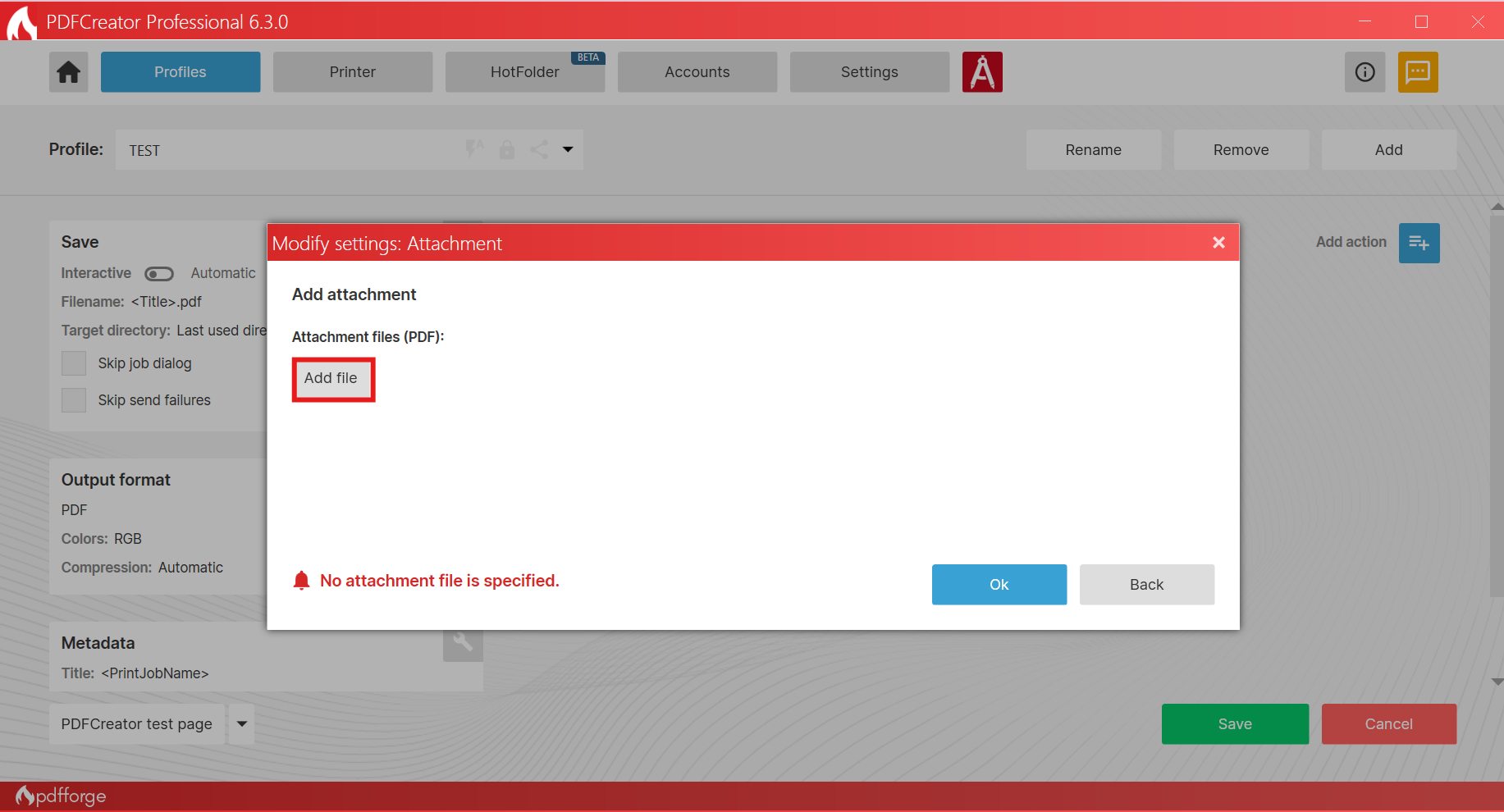
- Browse to and select your attachement, then confirm.
- Click Save in the bottom right corner to save the profile.
You can now start printing all your documents through this profile, and each one will automatically get this attachment appended at the end.