![pdfforge_fav-2.png]](https://support.pdfforge.org/hs-fs/hubfs/pdfforge_fav-2.png?height=40&name=pdfforge_fav-2.png)
What the Printer Section Does
Each printer listed in this section is a separate virtual PDF printer PDFCreator has installed on Windows. Every printer can be linked to a different profile, which is applied automatically whenever you print to that printer. For example, you could have one printer for invoices that autosaves straight to a folder, and another for everyday, interactive use.
1. Open the Printer Section
- Launch PDFCreator from the Windows Start menu
- In the main window, click on Printer.
2. Review Your Existing Printers
- You'll see a list of the printers currently installed.
- The printer named "PDFCreator" is the default primary printer , this is the one used when you right click a file in Windows Explorer and choose to create a PDF with it.
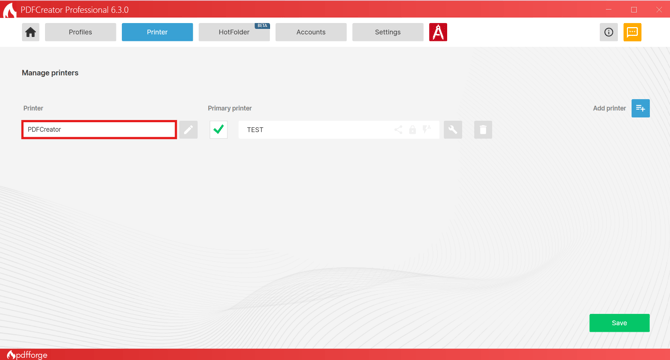
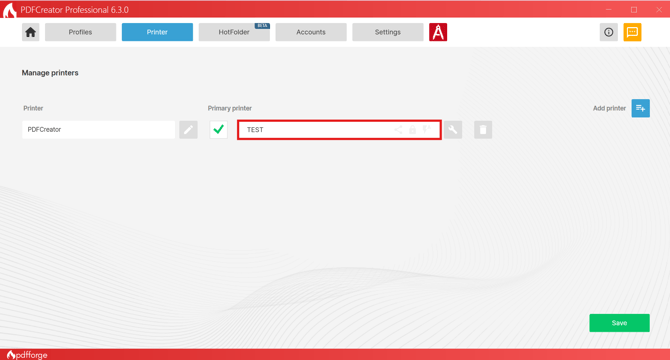
- Next to each printer is a column showing which profile is linked to it. By default, a printer uses whatever profile was last selected.
3. Add a New Printer
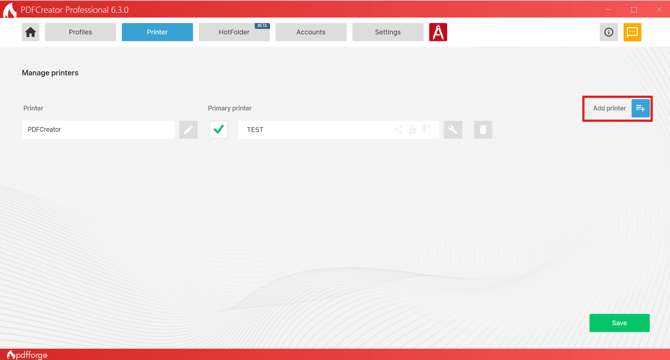
- Click Add Printer.
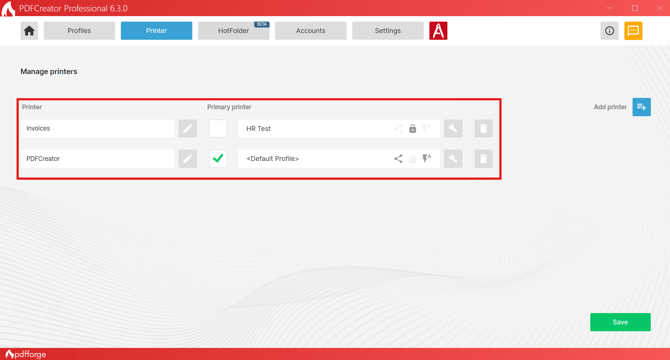
- Give the new printer a clear, descriptive name (for example, "Invoices" or "Client PDFs") so it's easy to pick out later in the Windows print dialog.
- The new printer will appear in your list, ready to be linked to a profile.
4. Link a Printer to a Profile
- Click the profile column next to the printer you want to configure.
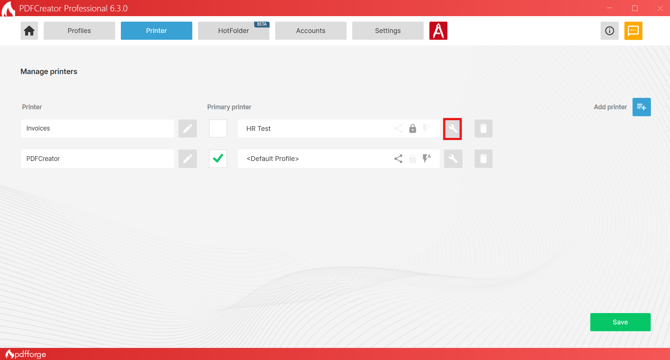
- Choose the profile you want this printer to use from the dropdown list.
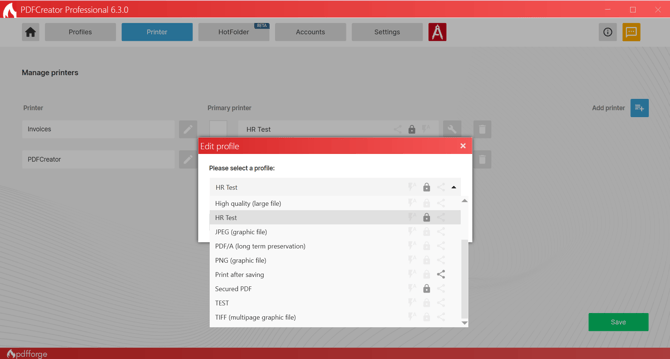
- From now on, printing to this printer will automatically apply that profile's settings.
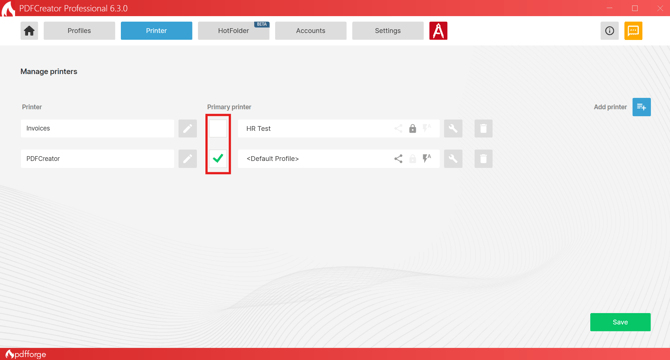
5. Set the Primary Printer (Default)
- If you want a different printer to be the one used for right-click "Create PDF" actions in Windows Explorer, locate the option to set the primary printer in this section.
- Select the printer you want as primary and save your changes.
6. Rename or Delete a Printer
- To rename a printer, select it from the list.
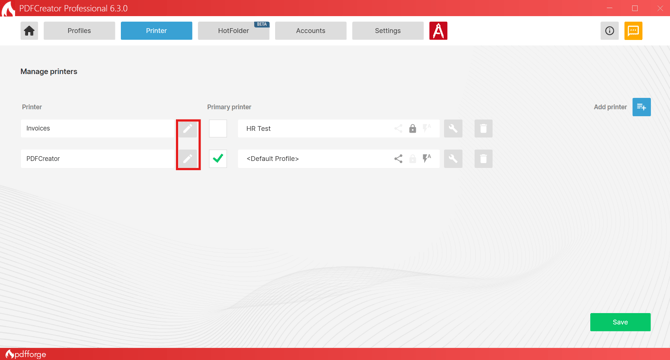
- To remove one you no longer need, select it and click Delete Printer.
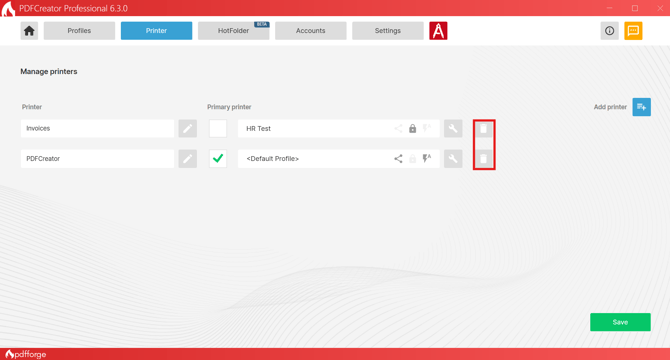
- Both actions require administrator rights, since they modify the actual Windows printer list.
You can now print to any of your named printers and PDFCreator will automatically apply the right profile every time, with no extra clicks needed.