![pdfforge_fav-2.png]](https://support.pdfforge.org/hs-fs/hubfs/pdfforge_fav-2.png?height=40&name=pdfforge_fav-2.png)
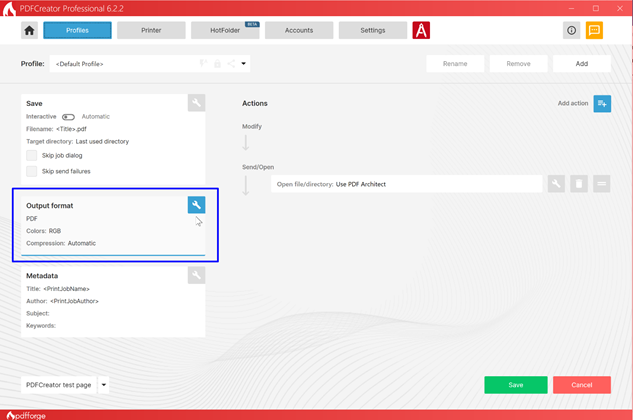
The Output Format section controls the format and basic characteristics of the generated document.
Format. Defines the output file type.
Colors. Specifies the color mode used for document generation.
Compression. Controls how image and document content is compressed within the output file. Compression settings can help reduce file size while maintaining acceptable quality.
Output Format Settings
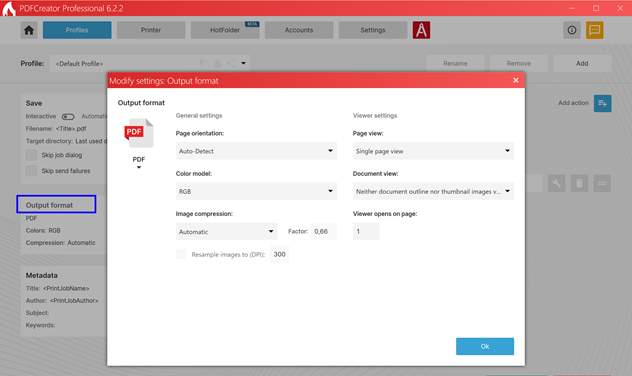
The Output Format Settings dialog allows users to configure how PDFCreator generates output files. These settings control the structure, appearance, compression, and viewing behavior of the resulting document.
The available options vary depending on the selected output format (PDF, PDF/A, JPEG, PNG, TIFF, etc.).
In the example shown, the settings are displayed for the PDF output format.
Main Interface Components
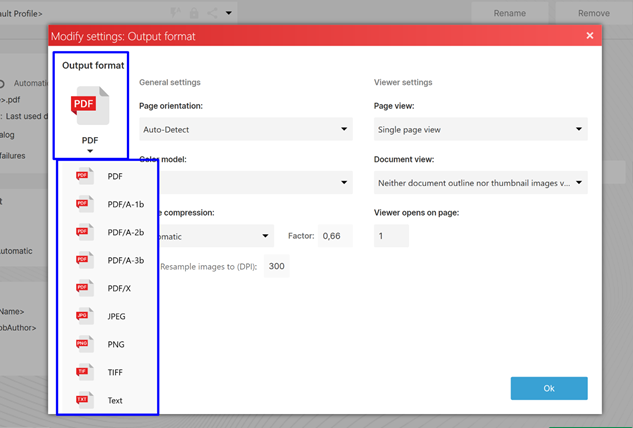
Output Format Selection. This section allows users to select the output format associated with the current profile.
Available formats include:
- PDF/A-1b
- PDF/A-2b
- PDF/A-3b
- PDF/X
- JPEG
- PNG
- TIFF
- Text
Each format provides its own set of configuration options.
General Settings
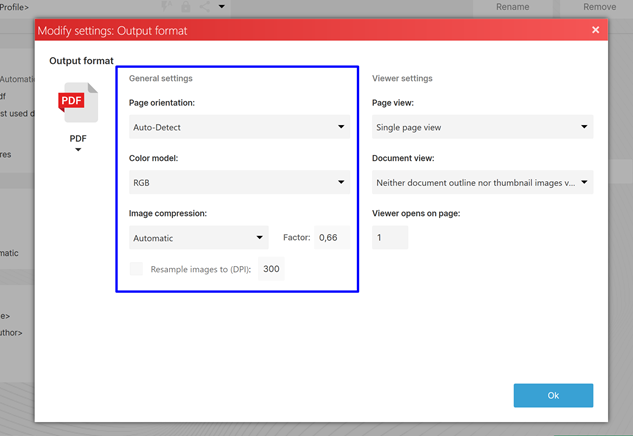
The General Settings section controls how the document is generated.
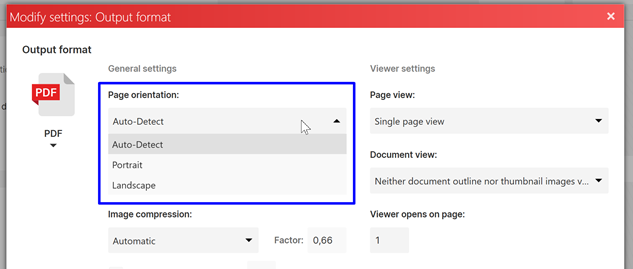
Page Orientation. Determines the orientation of pages in the output document.
Available options include:
- Auto-Detect
- Portrait
- Landscape
Auto-Detect. PDFCreator automatically determines the appropriate page orientation based on the source document.
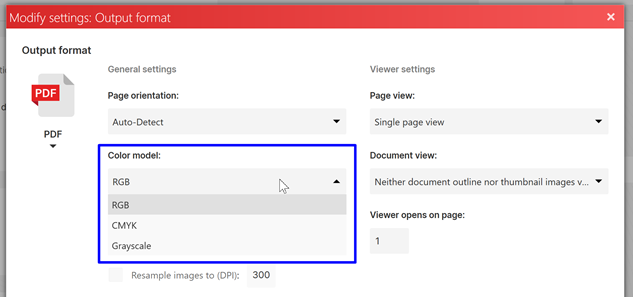
Color Model. Defines how colors are stored in the generated file.
Common options include:
- RGB (Red, Green, Blue)
- CMYK (Cyan, Magenta, Yellow, and Key Black)
- Grayscale
RGB Preserves the original color information and is recommended for most documents.
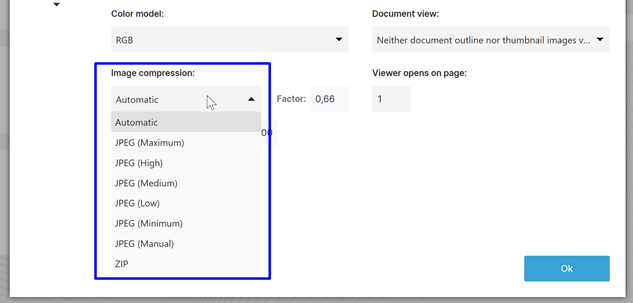
Image Compression. Controls how images embedded in the document are compressed.
Common options include:
- Automatic
- JPEG (Maximum, High, Medium, Low, Minimum, Manual)
- ZIP
Compression can significantly reduce file size while maintaining acceptable image quality.
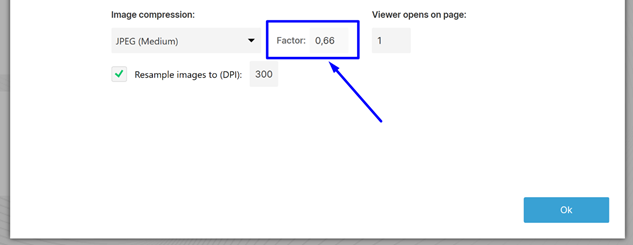
The Factor value determines the level of image compression. Lower values generally produce smaller files but may reduce image quality.
Higher values preserve more detail at the expense of larger file sizes.
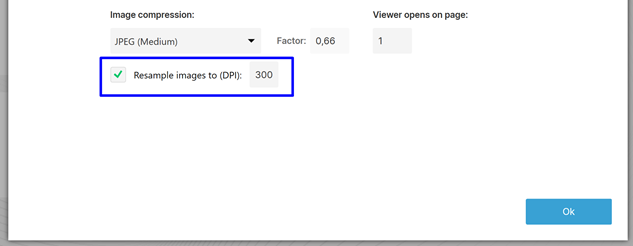
Resample Images. When enabled, PDFCreator resamples embedded images to a specified resolution (DPI).
DPI (Dots Per Inch). A higher DPI value improves image quality but increases file size.
Common values include:
- 150 DPI – suitable for screen viewing
- 300 DPI – suitable for printing
- 600 DPI and above – high-quality print production
Resampling can be useful when optimizing documents for storage, email distribution, or professional printing.
Viewer Settings
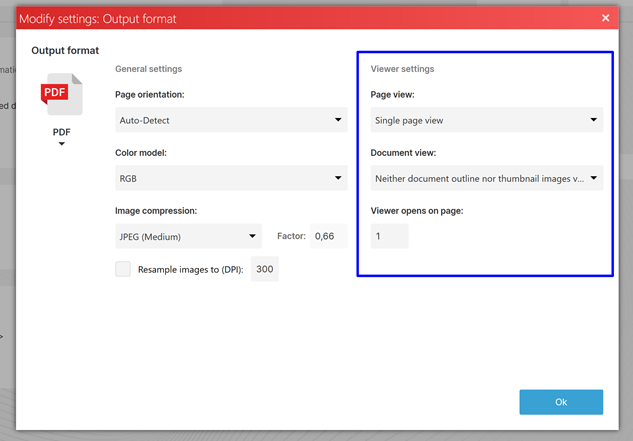
The Viewer Settings section defines how the document is initially displayed when opened in a PDF viewer. These settings are stored within the PDF file and may be recognized by compatible PDF readers.
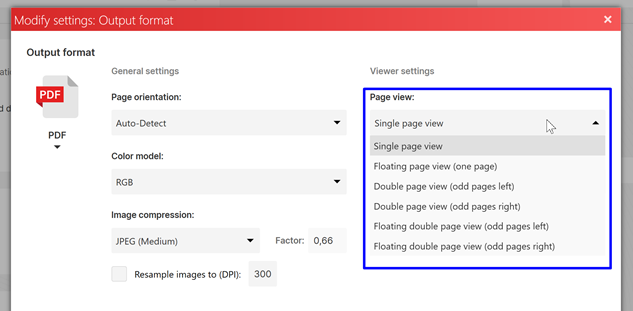
Page View. Determines how pages are displayed when the document is opened.
Examples include:
- Single page view
- Floating page view (one page)
- Double page view (odd pages left)
- Double page view (odd pages right)
- Floating double page view (odd pages left)
- Floating double page view (odd pages right)
Single Page View. Displays one page at a time within the PDF viewer.
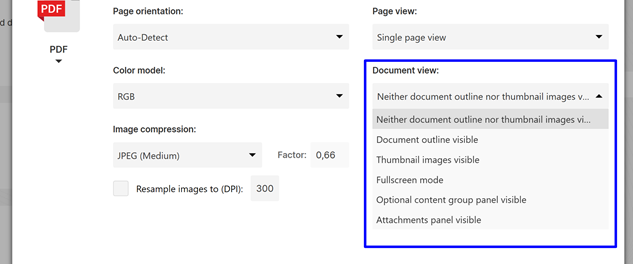
Document View. Controls which navigation panels are displayed when the PDF is opened. These settings can improve navigation in large documents.
Available options include:
- Neither document outline nor thumbnail images visible - none of the tabs on the left are selected (this is the default)
- Document outline visible - the document outline (with the bookmarks) is visible
- Thumbnail images visible - thumbnail images corresponding with the pages are visible
- Fullscreen mode- no menu bar, window controls or any other windows are visible
- Optional content group panel visible
- Attachments panel visible
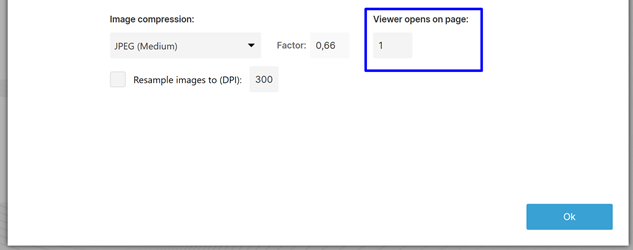
Viewer Opens on Page. Specifies the page number that should be displayed when the document is opened. For example: 1 – Open the document on the first page,5 – Open the document on page five. This setting is useful for reports, manuals, and documents where readers should begin at a specific section.
Ok. Applies the selected settings and returns to the profile configuration page. Any changes made in this dialog become part of the currently selected profile.