![pdfforge_fav-2.png]](https://support.pdfforge.org/hs-fs/hubfs/pdfforge_fav-2.png?height=40&name=pdfforge_fav-2.png)
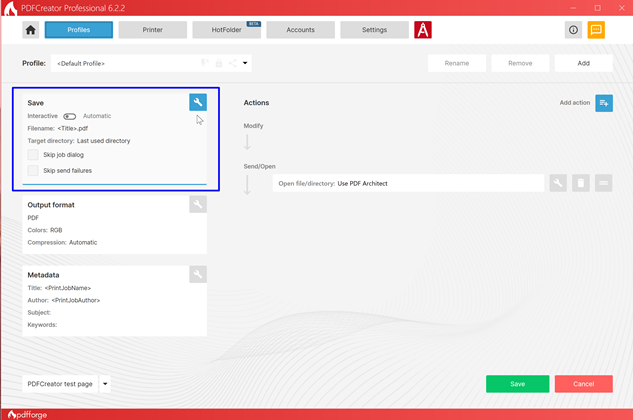
The Save section defines how and where generated documents are stored.
Save Mode. Determines whether PDFCreator prompts the user for save information or saves documents automatically.
Available modes:
Interactive – The user is prompted to confirm settings before the document is saved.
Automatic – Documents are processed and saved without user interaction.
Filename. Defines the naming pattern used for generated files. Tokens such as <Title> can be used to automatically generate filenames based on document information.
Target Directory. Specifies the folder where converted documents will be saved.
Skip Job Dialog. When enabled, PDFCreator bypasses the job processing dialog and proceeds directly with the configured profile settings.
Skip Send Failures. Prevents error dialogs from appearing when a configured send action cannot be completed successfully.
Save Settings
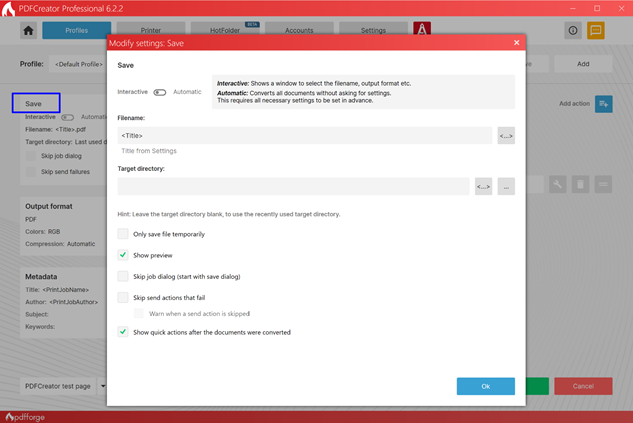
The Save Settings dialog controls how PDFCreator stores generated documents after processing.
These settings determine whether user interaction is required, how filenames are generated, where files are saved, and how PDFCreator behaves during and after document conversion. The Save settings are among the most important profile options, especially when configuring automated workflows.
Main Interface Components
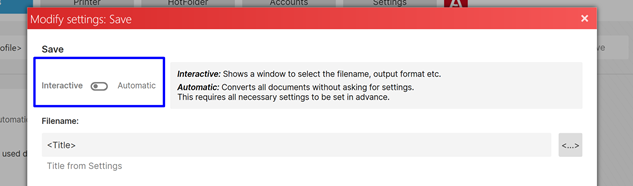
Save Mode. The save mode determines whether PDFCreator prompts the user for input or processes documents automatically.
When Interactive mode is enabled, PDFCreator displays a dialog that allows users to:
- change the profile
- modify the filename
- choose the output format
This mode is recommended when users need full control over each conversion.
When Automatic mode is enabled, PDFCreator converts and saves documents without displaying the save dialog.
All required settings must be configured in advance within the profile.
This mode is typically used for:
- predefine the file format
- predefine a filename (see Metadata)
- select the target directory
Since there is no interaction, autosave profiles must store all required passwords.
When trying to save to a file that already exists, there are three options available:
- Overwrite files: The existing file is overwritten.
- Ensure unique filenames: If the file already exists, the current document will get a numbered appendix added to it. As an example, if “Testfile.pdf” already exists, the output document will be saved as “Testfile_2.pdf”.
- Auto merge: Append new files to the existing file.
- Auto merge: Append new files to the existing file before the modify and send actions are applied.
The Auto merge options are restricted to the PDF output format. When another output format is selected, the fallback option is Ensure unique filenames.
Auto merge works with encryption if the owner passwords match.
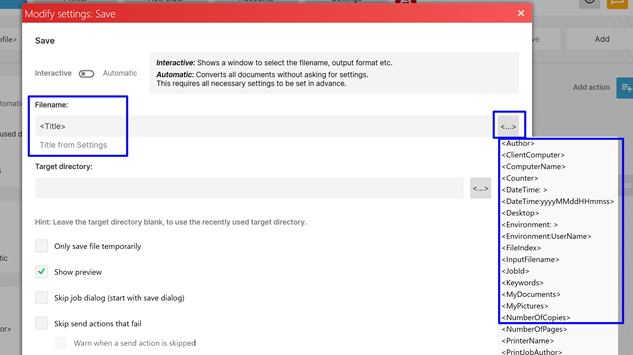
The Filename field defines the naming pattern for generated files. PDFCreator supports tokens that automatically insert document-specific information into the filename.
Example: <Title>
The generated filename will be based on the document title. Commonly used tokens include:
- <Title>
- <Author>
- <ClientComputer>
- <MyDocuments>
Multiple tokens and custom text can be combined to create dynamic filenames.
Token Selection. The <...> button opens the token editor, allowing users to insert available placeholders without manually typing them.
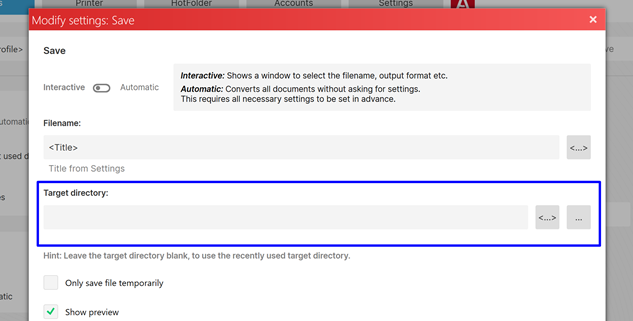
The Target Directory field specifies where generated documents will be saved. By default the target directory is empty, by this the PDFCreator print job dialog opens with the last directory that was used.
Browse Folder. The folder selection button “ … “ allows users to choose a fixed destination directory.
Variable and Token Support. The additional selection button <...> can be used to insert tokens or variables, enabling dynamic save locations.
Example: <DateTime: >C:\Users\Public\Documents
This configuration creates user-specific output folders automatically.
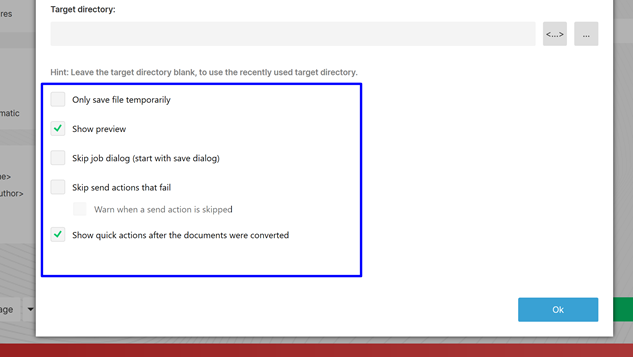
Only save file temporarily. Using this option will make PDFCreator save files temporarily in a separate folder. PDFCreator will automatically delete all files in the folder every 48 hours. The output for each print job is saved in a subfolder to ensure there are no duplicated file names. This feature is especially useful if you don’t need to save files because print jobs are processed via send actions.
Show Preview. Displays a preview of the generated document before final processing. This allows users to verify the document content and appearance before saving or performing additional actions. This option is available only when the selected workflow supports document previewing.
Skip Job Dialog (Start with Save Dialog) When enabled, PDFCreator bypasses the standard job processing window and opens the save dialog directly.
Typical use cases include:
- Single-document processing
- Simplified user workflows
- Controlled desktop environments
Skip failed send actions. You can add multiple send actions to your profile and set the order in the workflow editor. This option selects whether to continue with other send actions if one of them fails. In interactive mode, Warning if send action skipped provides the option to display a warning when a send action has failed and has therefore been skipped.
Show Quick Actions After the Documents Were Converted. After the conversion PDFCreator while remain open and display information about the created document. Furthermore it gives you the quick access to further actions, see Quick Actions.
Ok. Applies the selected settings and returns to the profile configuration page.