![pdfforge_fav-2.png]](https://support.pdfforge.org/hs-fs/hubfs/pdfforge_fav-2.png?height=40&name=pdfforge_fav-2.png)
Profile selection
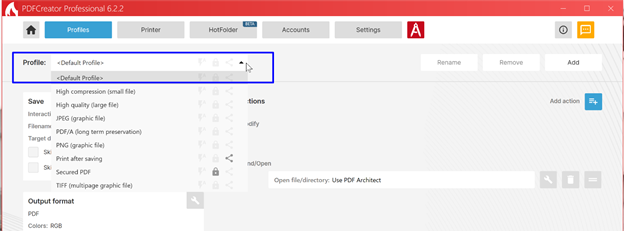
The Profile drop-down list allows users to select the profile they want to view or edit. The selected profile controls all document processing settings displayed on the page. To give you some guidance, PDFCreator comes with a set of predefined profiles. Of course you can edit them according to your personal needs and except for the <Default Profile> you may also rename or delete them.
<Default Profile> The default profile should define your frequently used settings. It can’t be renamed or deleted to ensure at least one profile reference.
High Compression (small file) This profile was made to generate small file sizes with a loss of image quality due to the high compression. Ideal to share early concepts or if a small file is absolutely required.
High Quality (large file) Use this profile to keep the highest possible quality depending on your original, limited by the capacity of the created file format.
JPEG (graphic file) This profile generates a JPEG file. A popular graphic file format especially for web usage, with a good compromise between file size and quality.
PDF/A (long term preservation) Create a file that fulfills the ISO standard of Portable Document Format (PDF) for digital long term preservation of electronic documents.
PNG (graphic file) PNG is a graphic file format, without a loss of quality due to compression.
Print after saving After saving, this profile automatically launches the printer dialog to print the document with a further printer. You can choose between any printer installed on your computer.
TIFF (multiple graphic file) TIFF is a graphic file format with the main advantage to save multiple images (respectively pages) into one file.
Profile management
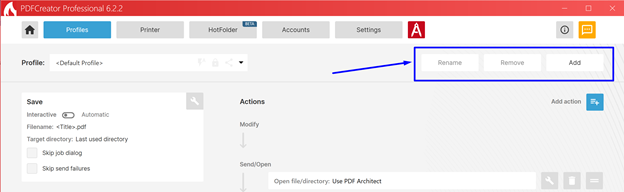
Add. Creates a new profile. New profiles can be configured independently and used for specific document processing scenarios.
Rename. Changes the name of the selected profile. This is useful for creating descriptive profile names that clearly identify their purpose.
Remove. Deletes the selected profile. Profiles that are no longer needed can be removed from the configuration.